Author: Study Flow
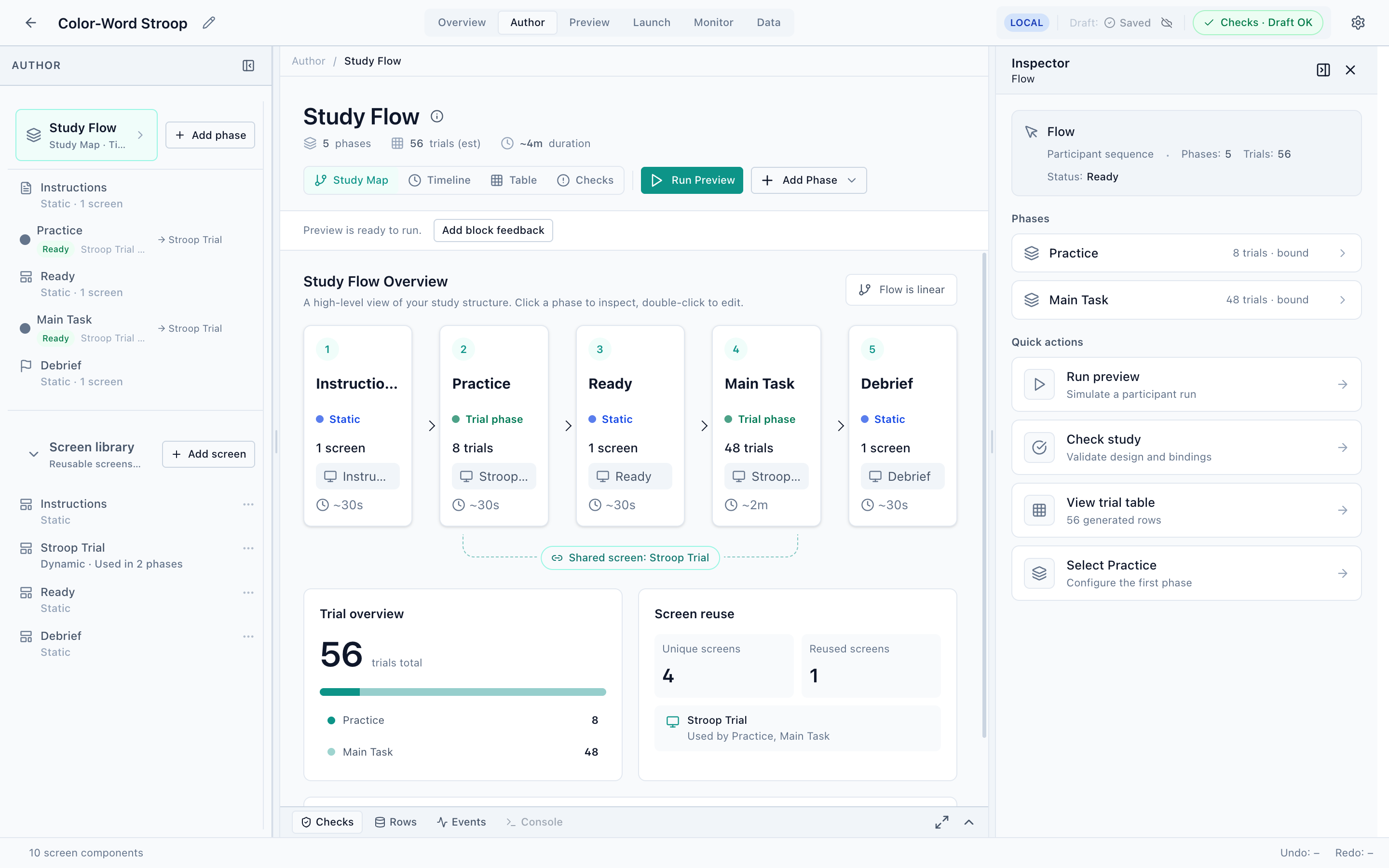
Study Flow is the first stop in the Author perspective. It is the map of your whole study: the ordered phases a participant moves through, from instructions to debrief.
Open it from the left navigator (Study Flow) or by selecting the study root. The center workbench shows a high-level overview you can click to inspect and double-click to edit.
Phases
A study is a sequence of phases. The Stroop example has five:
| Phase | Type | What it does |
|---|---|---|
| Instructions | Static | Shows one screen once before the task. |
| Practice | Trial phase | Generates 8 practice trials. |
| Ready | Static | A “press to begin” gate before the main task. |
| Main Task | Trial phase | Generates the 48 main trials. |
| Debrief | Static | A closing screen shown once. |
There are two kinds of phase:
- Static phases show a single screen once (instructions, a ready prompt, a debrief). They have no trial generation.
- Trial phases generate many trials from a design and show a screen for each one. Their trial count comes from Trial Design.
Internally a phase is a scope with a strategy. You normally just think in terms of phases; the vocabulary matters only when you open the advanced program editor.
The three views
The Study Flow workbench has three ways to look at the same structure, plus a Checks tab:
- Study Map — the high-level block diagram shown above. Best for understanding and rearranging structure.
- Timeline — the same phases laid out on a time axis, with estimated durations.
- Table — a compact tabular listing of phases and their settings.
The header also reports whether the flow is linear (a simple top-to-bottom sequence) or branched, the estimated total duration, and the total trial count.
Working with phases
- Add a phase
Click Add Phase in the navigator or the Study Map and choose the kind of phase to insert.
- Reorder
Phases run in the order shown; drag to rearrange them in the navigator.
- Inspect
Click a phase to see its summary in the right Inspector — trial count, bound screen, and quick actions (Open Trials, Open Screen, View rows, Preview).
- Edit
Double-click a phase (or use the Inspector’s Open Trials / Open Screen) to drill into its Trial Design and Screen.
Screen reuse
The overview’s Screen reuse panel shows how many distinct screens the study uses and which are shared. In the Stroop example the Stroop Trial screen is reused by both the Practice and Main Task phases — edit it once and both phases update. Shared screens live in the navigator’s Screen library.
The Run Preview button in Study Flow jumps straight to the Preview perspective and plays the study from the top — a fast way to sanity-check structural changes.