Author: Trial Design
A trial phase doesn't store a fixed list of trials — it generates them from a design. The Design tab (inside Author, for a selected trial phase) is where you describe that design: the factors that vary, and a pipeline that crosses, samples, derives, and orders them into concrete trial rows.
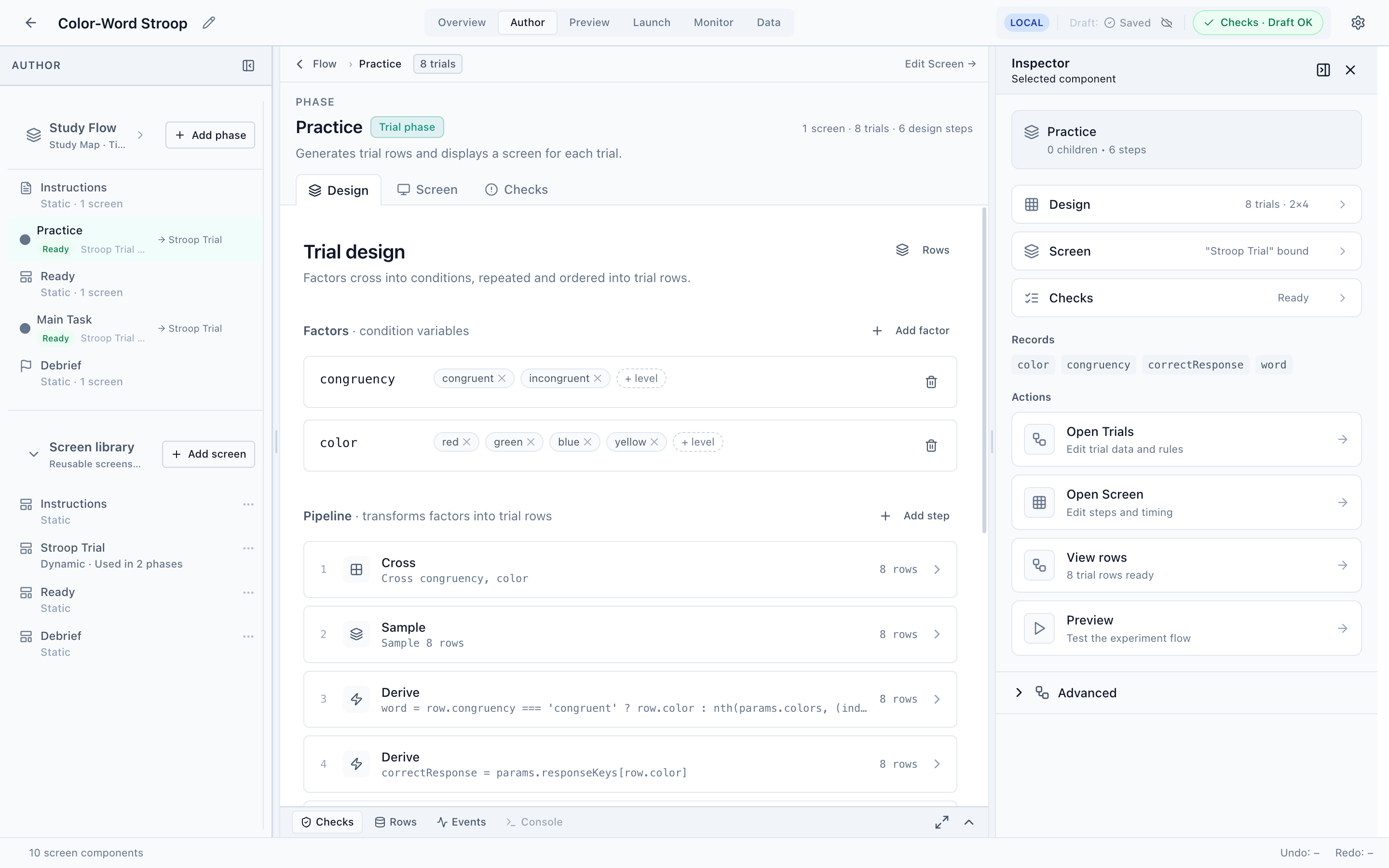
Factors
Factors are the variables that define your conditions. Each factor has a name and a set of levels. The Stroop example has two:
- congruency —
congruent,incongruent - color —
red,green,blue,yellow
Use Add factor to create one, then add levels with + level; rename a factor or level by clicking it. Factors are the raw material — the pipeline decides how they combine.
- Add a factor
Click Add factor, name it (e.g.
load), and add its levels. - Cross your factors
Make sure the pipeline’s Cross step lists the factors you want combined (see below).
- Check the rows
Watch the generated rows table — and the Rows dock tab — update as you edit.
The pipeline
The pipeline is an ordered list of steps that transforms factors into trial rows. Each step shows how many rows it produces, so you can see the design take shape. The Stroop Practice phase uses five steps:
| # | Step | What it does | Rows |
|---|---|---|---|
| 1 | Cross | Cartesian product of congruency × color | 8 |
| 2 | Sample | Selects rows (here, all 8) | 8 |
| 3 | Derive | Computes word from the condition | 8 |
| 4 | Derive | Computes correctResponse from color | 8 |
| 5 | Shuffle | Randomizes row order | 8 |
The common step types:
- Cross — combine factors into every condition (the design grid).
- Sample — take some or all rows, with or without replacement, to hit a target trial count.
- Repeat — duplicate rows so each condition appears multiple times.
- Derive — add a computed column from an expression.
- Shuffle — randomize order (optionally with constraints).
Use Add step to insert a step; the Step preview under the pipeline shows the rows after any chosen step, so you can inspect intermediate stages.
Derived columns and the expression language
Derive steps compute new columns with expressions. They reference the current row’s factor
values as row.<factor>, study-level parameters as params.<name>, and a set of helper
functions. Two real examples from the Stroop study:
// Incongruent trials show a different color word than the ink color.
word = row.congruency === 'congruent'
  ? row.color
: nth(params.colors, (indexOf(params.colors, row.color) + 1) % length(params.colors))// The correct key for this trial comes from the response-key map.
correctResponse = params.responseKeys[row.color]Helpers like nth(), indexOf(), and length() operate on parameter lists; standard
JavaScript operators (===, ?:, %, []) are available too.
Studio does not yet surface a reference or token palette for the expression language inside the
Derive editor, so you have to know the row.* / params.* syntax and helper names up front.
Until that lands, treat the worked examples above (and the example studies) as your reference.
We're tracking this as a documentation-and-UX gap.
Reading the generated rows
Below the pipeline, the rows table shows the final output — one row per trial, with a column per
factor and derived value (#, congruency, color, word, correctResponse). The same data is
available any time in the Rows tab of the bottom dock. These columns are exactly what becomes
available to bind into the screen.
The trial count is the product of your factors, samples, and repeats. A few extra factors or levels can multiply into a very large design — watch the per-step row counts as you build.
Next
Bind these trial columns into what the participant actually sees.